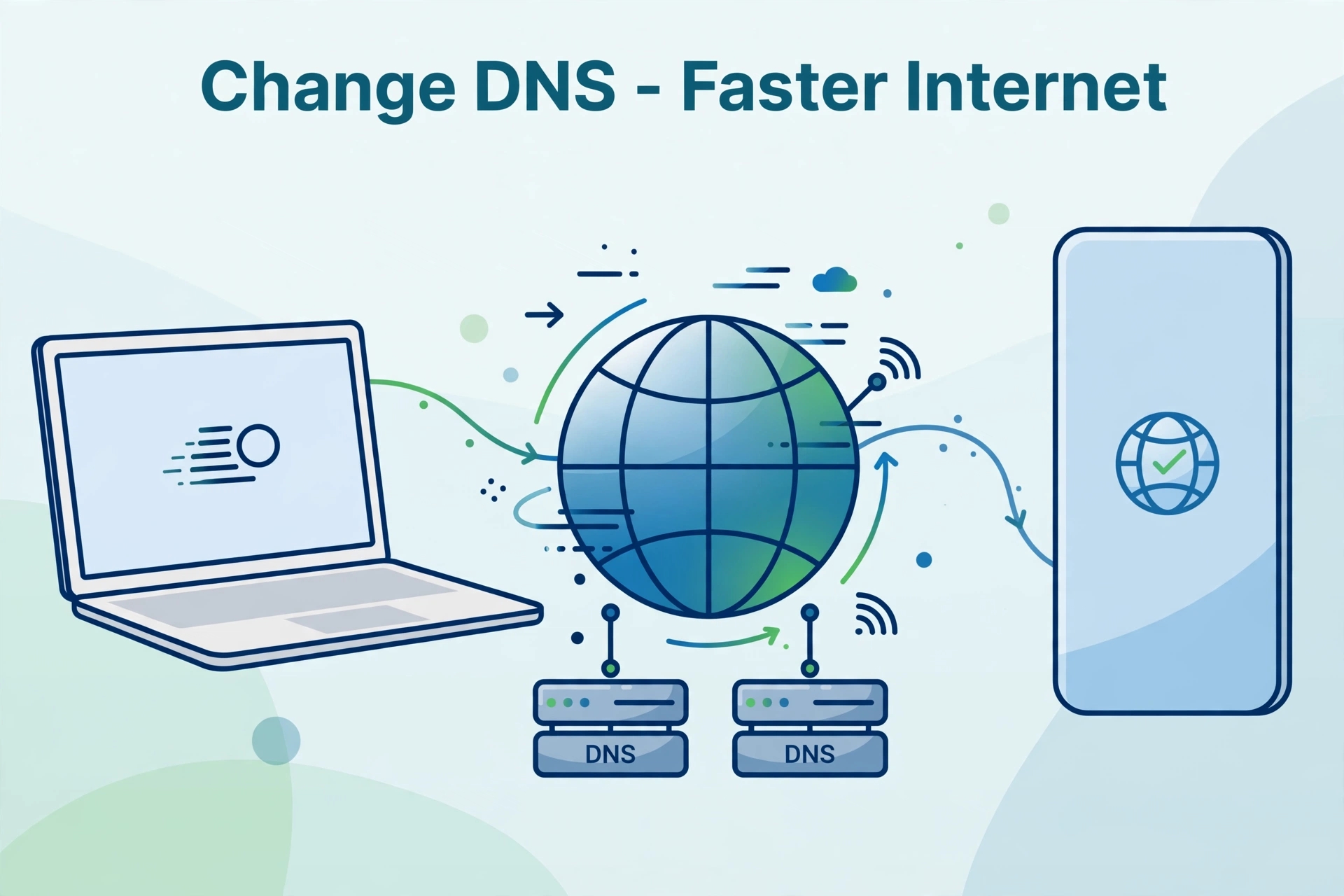
How To Change DNS – Speed Up Your Internet in 2 Minutes
Is your internet slow? Your DNS might be the problem. Changing your DNS can make your internet faster, safer and unblock websites.
What is DNS?
DNS is like a phonebook for the internet. When you type google.com, DNS finds the address. If your DNS is slow, your internet feels slow.
Best Free DNS Servers in 2026:
- Google DNS – 8.8.8.8 and 8.8.4.4 – Fastest & Most Popular
- Cloudflare DNS – 1.1.1.1 and 1.0.0.1 – Fastest & Most Private
- OpenDNS – 208.67.222.222 and 208.67.220.220 – Best For Family Safety
How To Change DNS on Windows:
- Go to Settings > Network & Internet > Wi-Fi
- Click your Wi-Fi name
- Click Edit under DNS Settings
- Change to Manual, turn on IPv4
- Type 1.1.1.1 and 1.0.0.1
- Click Save. Done!
How To Change DNS on Android:
- Go to Settings > Network > Private DNS
- Select Private DNS Provider Hostname
- Type one.one.one.one
- Click Save
How To Change DNS on iPhone:
- Go to Settings > Wi-Fi
- Click (i) next to your Wi-Fi
- Click Configure DNS > Manual
- Delete old DNS, Add 1.1.1.1 and 1.0.0.1
- Click Save
How To Check If It Worked?
Go to myipeu.com and check your IP and DNS. If your internet is faster now, your DNS change worked!
Is Changing DNS Safe?
Yes! Changing DNS to Google or Cloudflare is 100% safe and legal. It does not hide your IP, but it makes your internet faster and more private.
Check your IP now at myipeu.com – Free, Fast & Safe.